Personal · Design tools
Copy Color Converter
A one-page tool for keeping a small palette at hand: paste or type colours, switch the whole list between HEX, RGB, HSL, HSB and CMYK, and copy any value in one click.
Contents · Overview
Overview
Copy Color Converter is a small personal tool: a palette of colour cards on one page. Each card holds a value, an optional name and a swatch; one menu converts every card between five formats; one click copies a value.
It is for a routine job — moving colours between a design file, CSS and print — and it is small: one screen, no account, nothing to install.
Challenge
the problem
Same colour, different notation.
A design file hands over HEX; CSS often wants rgb() or hsl(); print wants CMYK. Converting one value at a time in a search-result converter, then retyping it, is slow and easy to get wrong.
The aim was one page that holds a working palette, converts all of it at once, and makes copying a value a single click — on a laptop or a phone.
Goals
goals, from the project brief
Real-time conversion — the swatch follows the value as you type.
One-click copy, with a confirmation.
Visual feedback — a live swatch, a preview of unfinished values, a clear error.
A minimal interface, so the only saturated colour on screen is the palette itself.
The page opens with three named sample colours, so there is something to try before typing anything.
Flows
Two things happen on this page: a value is typed and checked, and the whole list is converted when the format changes.
Pick a format
The menu at the top sets one format for every card: HEX, RGB, HSL, HSB or CMYK. Each field’s placeholder shows the shape it expects — rgb(255, 87, 51), hsl(9, 100%, 60%), cmyk(0, 66%, 80%, 0%).
One value, as you type
- Type or paste — Read in the format chosen in the menu.
- Valid for the format?
- Swatch + value
- Partial preview — Not valid yet, but close enough to show: #FF57 previews as #FF5700.
- Invalid color code — Shown under the field; the swatch goes transparent.
- Copy — The copy icon or the swatch. Invalid values are refused.
Type
The swatch reacts before the value is finished: four or five HEX digits preview padded with zeros, and an RGB value with two channels previews with the third at 0. The field turns yellow, and the swatch’s tooltip says “Partial color preview”.
One value, as you type
- Type or paste — Read in the format chosen in the menu.
- Valid for the format?
- Swatch + value
- Partial preview — Not valid yet, but close enough to show: #FF57 previews as #FF5700.
- Invalid color code — Shown under the field; the swatch goes transparent.
- Copy — The copy icon or the swatch. Invalid values are refused.
Fix
When the text can’t become a colour in the chosen format, the field turns red, “Invalid color code” appears under it and the swatch goes transparent — including for a perfectly good rgb() while the menu says HEX.
One value, as you type
- Type or paste — Read in the format chosen in the menu.
- Valid for the format?
- Swatch + value
- Partial preview — Not valid yet, but close enough to show: #FF57 previews as #FF5700.
- Invalid color code — Shown under the field; the swatch goes transparent.
- Copy — The copy icon or the swatch. Invalid values are refused.
Copy
One click on the copy icon, or on the swatch itself, puts the value on the clipboard and a toast confirms: “Color copied!”. An invalid value is refused with “Cannot copy invalid color”.
One value, as you type
- Type or paste — Read in the format chosen in the menu.
- Valid for the format?
- Swatch + value
- Partial preview — Not valid yet, but close enough to show: #FF57 previews as #FF5700.
- Invalid color code — Shown under the field; the swatch goes transparent.
- Copy — The copy icon or the swatch. Invalid values are refused.
One value, as you type
- Type or paste — Read in the format chosen in the menu.
- Valid for the format?
- Swatch + value
- Partial preview — Not valid yet, but close enough to show: #FF57 previews as #FF5700.
- Invalid color code — Shown under the field; the swatch goes transparent.
- Copy — The copy icon or the swatch. Invalid values are refused.
One value, as you type
- Type or paste — Read in the format chosen in the menu.
- Valid for the format?
- Swatch + value
- Partial preview — Not valid yet, but close enough to show: #FF57 previews as #FF5700.
- Invalid color code — Shown under the field; the swatch goes transparent.
- Copy — The copy icon or the swatch. Invalid values are refused.
One value, as you type
- Type or paste — Read in the format chosen in the menu.
- Valid for the format?
- Swatch + value
- Partial preview — Not valid yet, but close enough to show: #FF57 previews as #FF5700.
- Invalid color code — Shown under the field; the swatch goes transparent.
- Copy — The copy icon or the swatch. Invalid values are refused.
One value, as you type
- Type or paste — Read in the format chosen in the menu.
- Valid for the format?
- Swatch + value
- Partial preview — Not valid yet, but close enough to show: #FF57 previews as #FF5700.
- Invalid color code — Shown under the field; the swatch goes transparent.
- Copy — The copy icon or the swatch. Invalid values are refused.
Switching format
- Choose a format
- For each card
- Valid?
- Read its text into RGB
- Write RGB in the new format — Rounded to whole numbers, e.g. hsl(11, 100%, 60%).
- Mark invalid
- List redrawn
Wireframes
One screen, two views. In the list view each card is a row of three — copy button, value field, swatch — with the optional name underneath, and a dashed Add Color card that counts up to 30. The swatch view swaps the cards for big squares; hovering one shows copy, edit and remove.
Visual design & system
The interface is white and greys in light mode and black with dark-grey cards in dark mode, set in the system font. Colour in the chrome is only ever a signal: yellow for a value that is nearly there, red for an invalid one and for remove.
Key screen
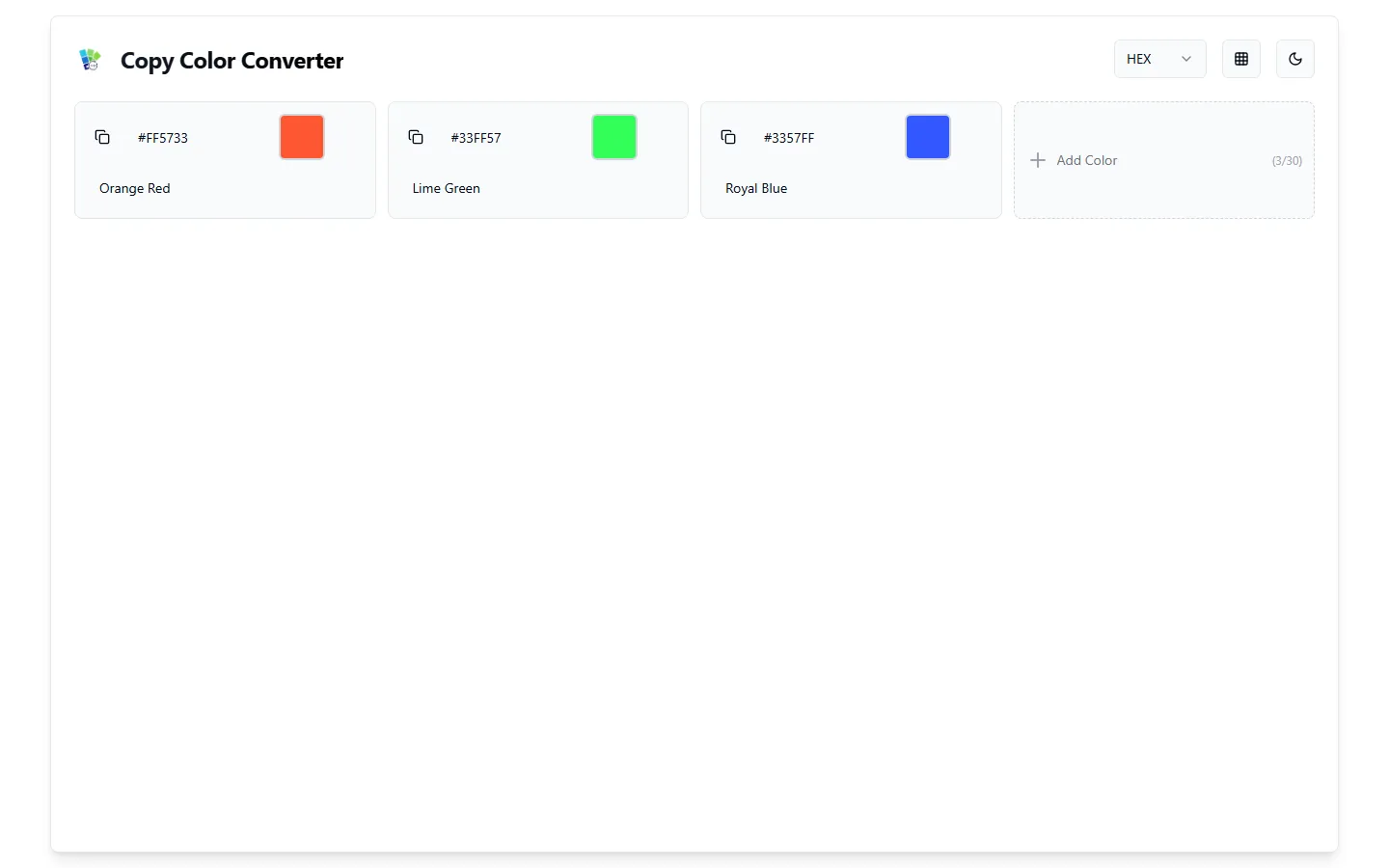
There is one screen, so every control earns its place on it. Open the numbered notes for what each part does.
- 1Copy
Copies the value exactly as written in the field.
- 2Live swatch
Follows the value as you type, including a partial preview of unfinished values. Clicking it copies too.
- 3Name
Optional. The sample colours arrive named: Orange Red, Lime Green, Royal Blue.
- 4Add Color
Adds an empty card, up to 30; the counter shows how many are used. Remove appears on hover once there are two or more.
- 5Format
Converts every card at once: HEX, RGB, HSL, HSB or CMYK.
- 6Swatch view
Swaps the list for a grid of big swatches; click one to copy.
Try it
a working sketch
Any format in, every format out.
A small version of the idea, rebuilt for this page. It doesn’t ask for a format first: paste #FF5733, rgb(255 87 51) or hsl(11, 100%, 60%) and it works out which it is, then shows all three with a copy button each.
One thing is done differently on purpose: the colour is stored once, as RGB, and every format is derived from that — so switching never drifts.
Loading interactive demo…
Build
Each card is stored as its text plus three flags — valid, previewable, and an error message — and every conversion goes through RGB. Each format has two readers: a strict one for converting, and a forgiving one for checking as you type, which is what makes the partial preview possible.
The palette, the chosen format, the theme and the view are saved to sessionStorage, so a reload keeps your work but a new tab starts fresh.
const checkHex = (value) => {
  const digits = value.replace('#', '');
  if (!/^[a-f0-9]*$/i.test(digits)) return { isValid: false, hasPreview: false, errorMessage: 'Invalid color code' };
  if (digits.length === 3) {
    const full = digits.split('').map((d) => d + d).join('');
    return { isValid: true, hasPreview: true, errorMessage: '', color: hexToRgb('#' + full) };
  }
  if (digits.length === 6) return { isValid: true, hasPreview: true, errorMessage: '', color: hexToRgb('#' + digits) };
  if (digits.length >= 4 && digits.length <= 5) {
    // Not valid yet, but previewable: pad with zeros so the swatch moves as you type.
    return { isValid: false, hasPreview: true, errorMessage: '', color: hexToRgb('#' + digits.padEnd(6, '0')) };
  }
  return { isValid: false, hasPreview: false, errorMessage: 'Invalid color code' };
};Outcome & learnings
The tool is live and does what it set out to do: a palette in any of five formats, copied in one click. Using it closely for this write-up turned up one real bug and a few rough edges.
the drift
Rounding compounds.
Switching #FF5733 to HSL gives hsl(11, 100%, 60%); switching back gives #FF5833 — one step greener, because the second conversion starts from rounded text. Store one exact value and derive every format from it, as the demo above does.
also learned
- Hover-only controls hide from touch and keyboard users — the remove button only becomes visible on hover.
- Icon-only buttons need names: the copy and theme buttons have no text label (the view button has a tooltip).
- A format menu that also gates input fails good values: a valid rgb() is “invalid” while the menu says HEX.
open items
- Keep one RGB value per card so format switches can’t drift.
- Detect the format of a pasted value instead of rejecting it.
- Give the page a real title and description — the tab still reads “format-flow-colors”.
- Label the icon buttons and show remove on keyboard focus.
- Optionally keep the palette between sessions (it lives in sessionStorage today).